
Feature · Smart Worker Interface
Know what is happening
on the floor right now.
DynamxMFG tracks every job, every operator and every minute in real time. Touch screen or QR scan, estimated versus actual on every operation, and a live factory display visible across the building.
The problem
You cannot manage what you cannot see
Most manufacturers have no live view of the shop floor. Jobs appear to be running until suddenly they are late. Time data exists only on paper, if at all. By the time a problem surfaces, the damage is already done.
Paper tracking is always out of date
Time sheets are filled in at the end of the day, if at all. The data is inaccurate, often missing, and impossible to use for job costing or performance reviews.
No visibility of what is running now
The only way to know a job’s status is to walk the floor and ask. That takes time, and the answer changes the moment you turn your back.
Jobs overrun with no early warning
You find out a job has overrun when it misses the delivery date. By then the customer has chased, the schedule has shifted, and the damage is done.
Tap or scan
Operators start and complete jobs with a tap or a scan
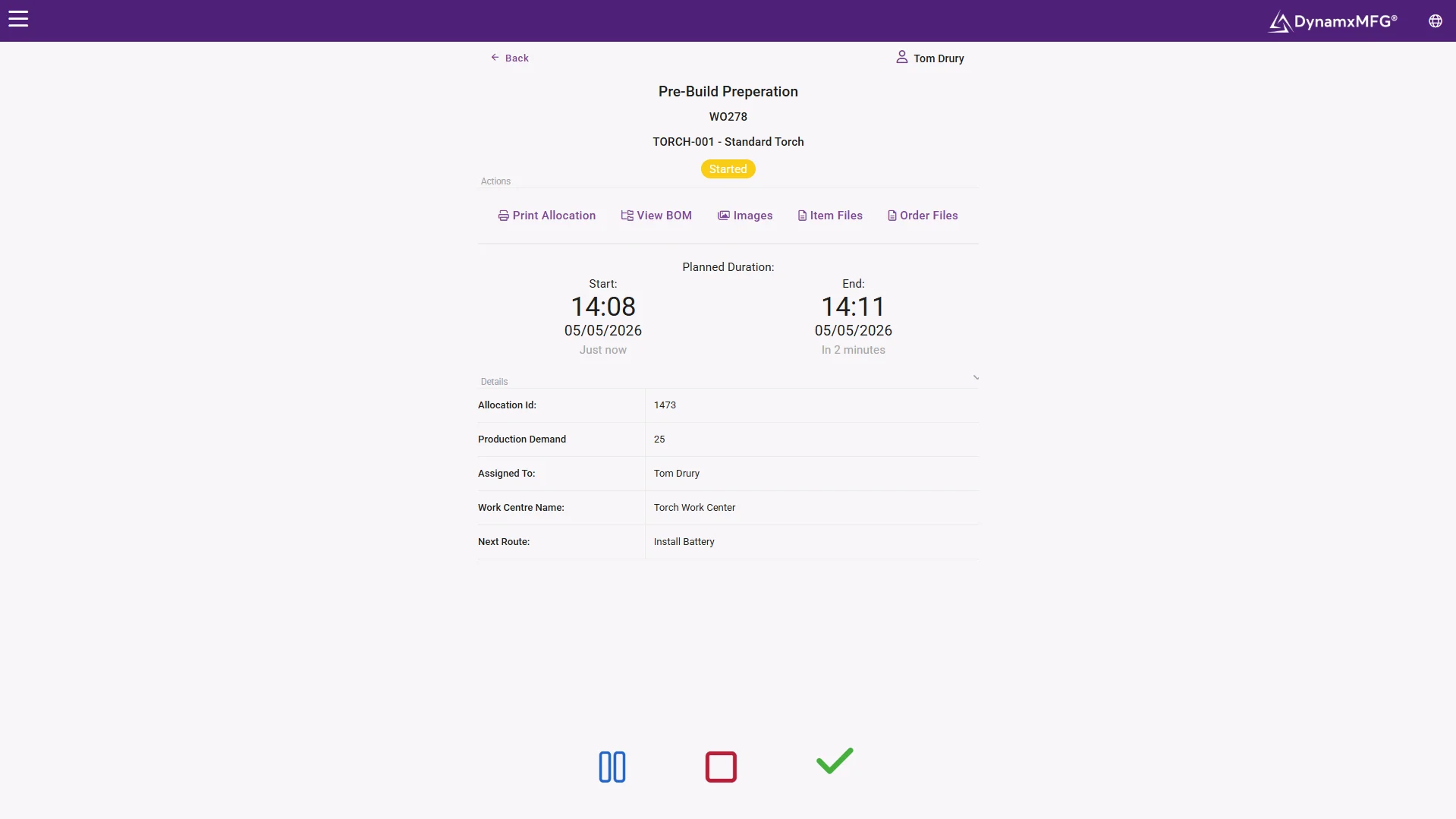
The Smart Worker Interface runs on any touch screen device: a tablet, a dedicated terminal or a shared workstation. Employees log in with their employee number, PIN or by scanning a QR badge. One tap starts the job, another completes it, and time records itself.
Scan Station mode lets operators track entirely by QR code. Scan the badge to log in, scan the part to select the job, then scan action codes to start, pause, stop or complete. No typing and nothing to navigate.
- Log in by employee number, PIN or QR badge
- One tap to start, one tap to complete
- Full scan-only mode for gloved hands
Estimated vs actual
See every job running over estimate before it becomes a problem
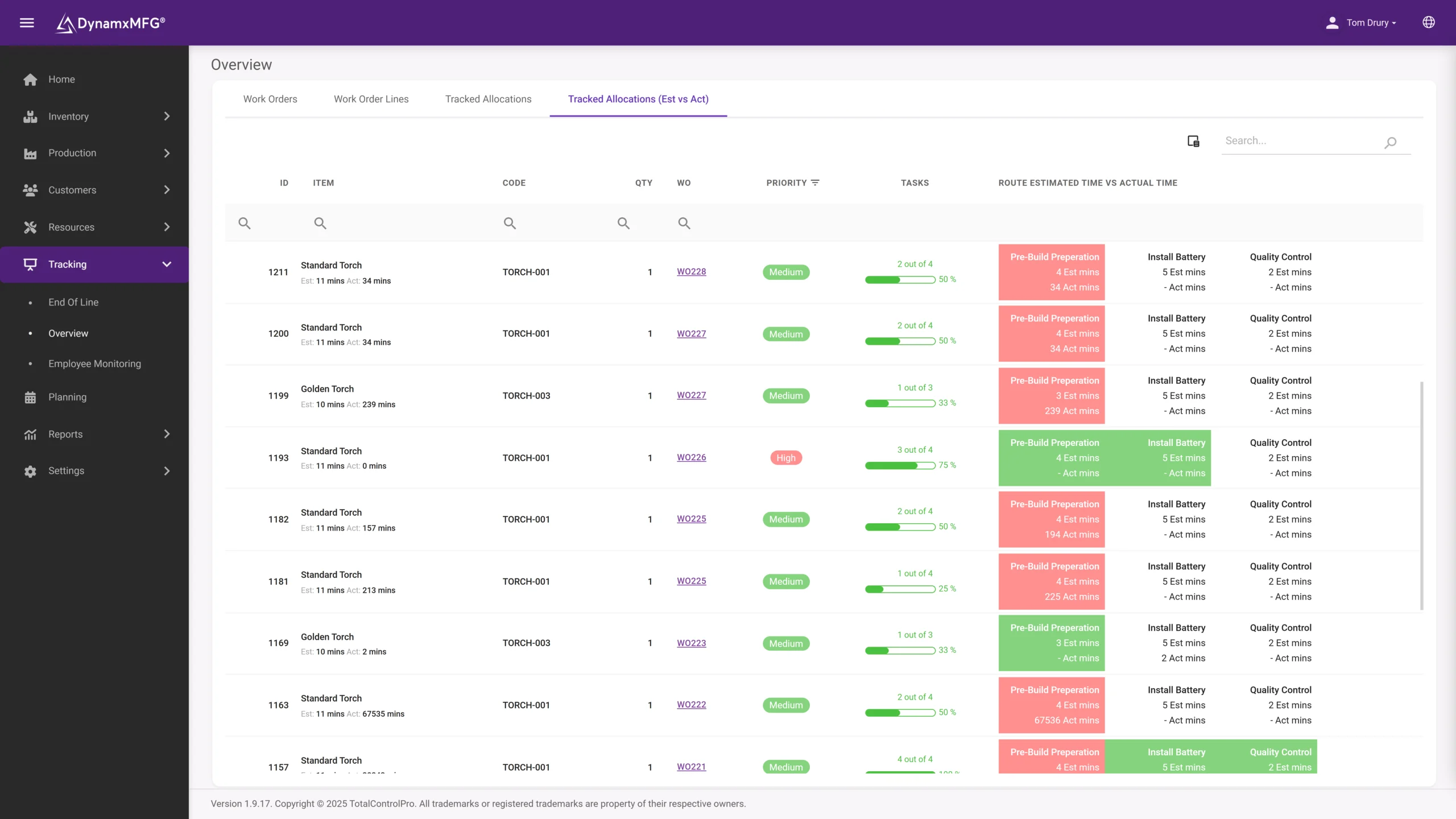
Every operation has an estimated time built into the routing. As operators track against it, DynamxMFG compares actual time to estimate in real time. Operations on target show green, operations running over show red. You see the problem while there is still time to act.
The Tracked Allocations view breaks down estimated versus actual time across every active work order, by operation, by employee and by routing. Use it in the daily production meeting or pin it to a management screen.
- Live comparison against the routing estimate
- Green and red status at a glance
- Breakdown by operation, employee and routing
Live factory display
Every order’s status visible across the factory floor
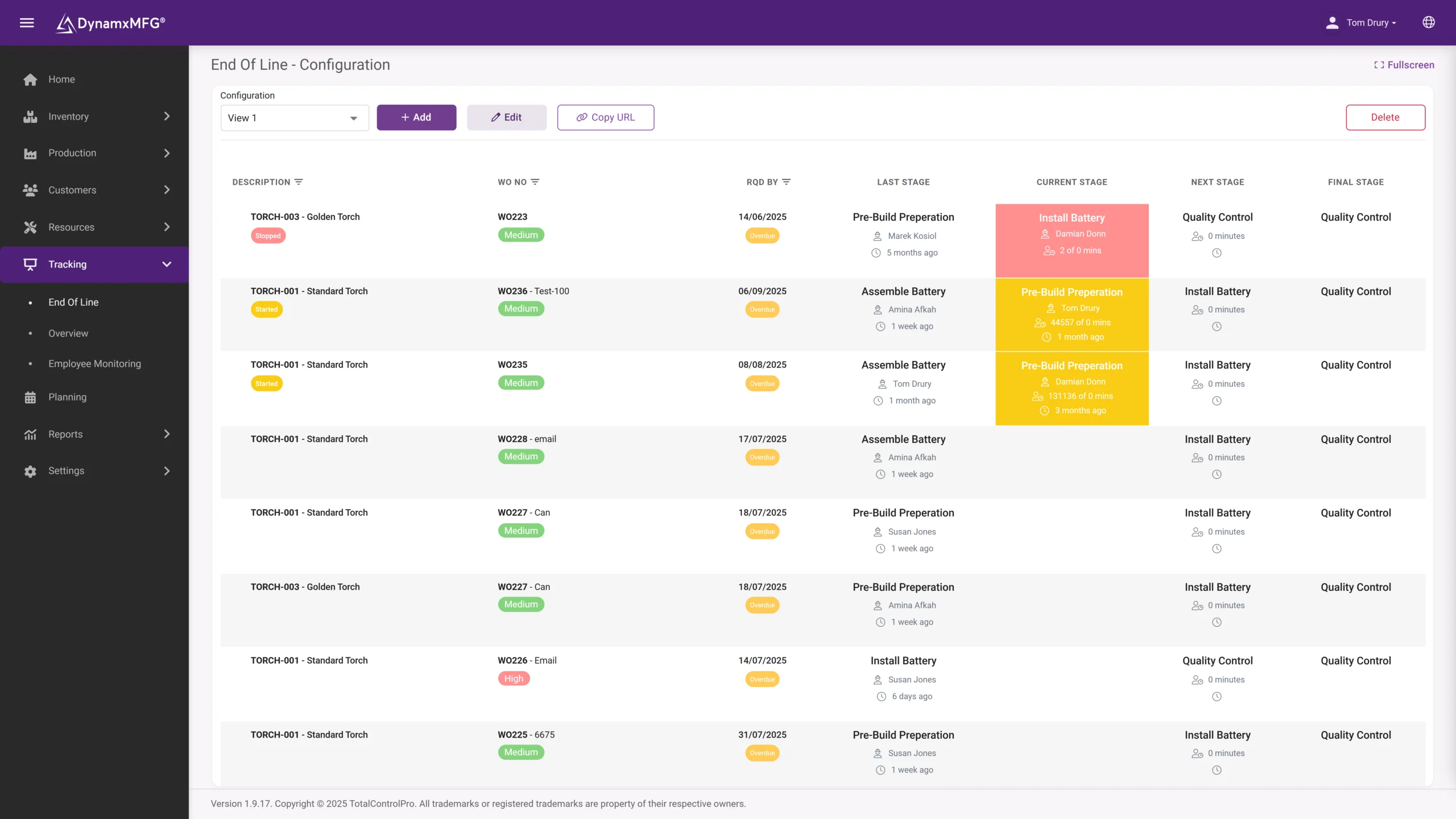
The End of Line screen is a large-format live display showing the current status of every work order: what is being built, what stage it is at, the required-by date and what is coming next. Configure multiple screens for different departments or production areas.
The Employee Monitoring screen shows what each person is working on right now, so managers see utilisation in real time without interrupting the floor. Clocking data is captured separately for attendance and payroll.
- Large-format End of Line screens per area
- Live utilisation without walking the floor
- Clocking captured separately for payroll
The detail
Everything else in shop floor tracking
Features built for the realities of a busy factory floor.
Group work
Multiple operators can join a single task at the same time. Each person’s time is tracked individually, and one master employee completes the task.
Auto-pause on breaks
When a scheduled shift break starts, active tasks pause automatically. Operators resume with one tap, and no time records are lost.
Stoppage reasons
When an operator stops work they select a reason from a pre-configured list, and that data feeds straight into the Stoppage Reason Analysis report.
Dynamic data capture
Configure custom input fields on any operation: measurements, inspection results, serial numbers. Required fields must be completed before an operation can close.
Auto-switch operations
After completing one operation the next becomes selectable automatically, so operators follow the part through a cell without navigating back to a menu.
Z-codes for non-productive time
Track time against training, cleaning or machine setup. Z-code activity sheets print as QR codes for scan station use.
Connected
Works on the devices already in your factory
DynamxMFG runs in Chrome, Edge or Firefox on any web-connected device. Wall-mounted tablets, ruggedised handhelds and dedicated scan terminals all work, and the interface adapts to whatever is already on the floor.
Tracked time flows through to job costing and into Sage or Xero, so the hours captured at the bench are the hours that appear against the job in your accounts.
See all integrations →





Questions
Shop floor tracking FAQs
What hardware do we need?
Whatever you already have. DynamxMFG runs in Chrome, Edge or Firefox on any web-connected device, so wall-mounted tablets, ruggedised handhelds and dedicated scan terminals all work.
How do operators log in?
By employee number, PIN or QR badge scan. In Scan Station mode they never touch a keyboard: scan the badge to log in, scan the part to pick the job, then scan action codes to start, pause or complete.
Will operators actually use it?
That is the test we would rather you set. One tap starts a job and one completes it, breaks pause automatically, and the next operation appears without navigating a menu. If your operators would not use it, nothing else about the system matters.
Can several people work on one job?
Yes. Multiple operators can join a single task at the same time, each person’s time is tracked individually, and one master employee closes the task.
How do we see jobs running over time?
Every operation carries an estimated time from the routing. Actual time is compared against it live, with on-target operations green and overruns red, so you can act while the job is still on the bench.
Does tracked time reach our accounts?
Yes. Captured time flows into job costing and through to Sage or Xero, so the hours recorded at the bench are the hours costed against the job.
Related
Explore further
The capability pages, definitions and reading that sit behind this part of DynamxMFG.
See your shop floor tracked live in DynamxMFG
Book a 15 minute demo and we will show you the full tracking interface, touch screen, scan mode and the live End of Line display, using your own operations.
Book a Demo

